FIELD GUIDE · MIDI TO WAV
MIDI to WAV: render notes into sound
To turn MIDI into WAV, open the MIDI in a renderer or music app, assign an instrument, and export audio as WAV. Renaming the file will not work. Rendering creates a new sound from the notes; it does not recover the original recording.
Our homepage converts audio into MIDI. It does not export WAV. This guide covers the reverse direction using an external renderer and a measured round trip.
A practical rendering workflow
- Keep your original MIDI unchanged. Work from a copy if you need to edit notes or tempo.
- Import it into a MIDI-capable music app with an audio export function, or a dedicated renderer.
- Assign a sound to the notes. Check instrument choices and listen before exporting.
- Select WAV as the audio output, render, then open the resulting file in an audio player.
For this test we used Jukeblocks' MIDI to Audio Converter: choose the MIDI file, select WAV, then Convert. Its page describes General MIDI instruments and browser-local processing. We verified a downloaded WAV for our sample, not its handling of every possible MIDI file.
Our WAV → MIDI → WAV experiment
We started with our own synthetic melody, not a commercial song or a human performance. The source contains sixteen intended tones. Our earlier converter test produced fifteen detected MIDI notes at a minimum note length of 100 milliseconds. We took that exact downloaded MIDI into the external renderer; we did not replace it with an ideal score.
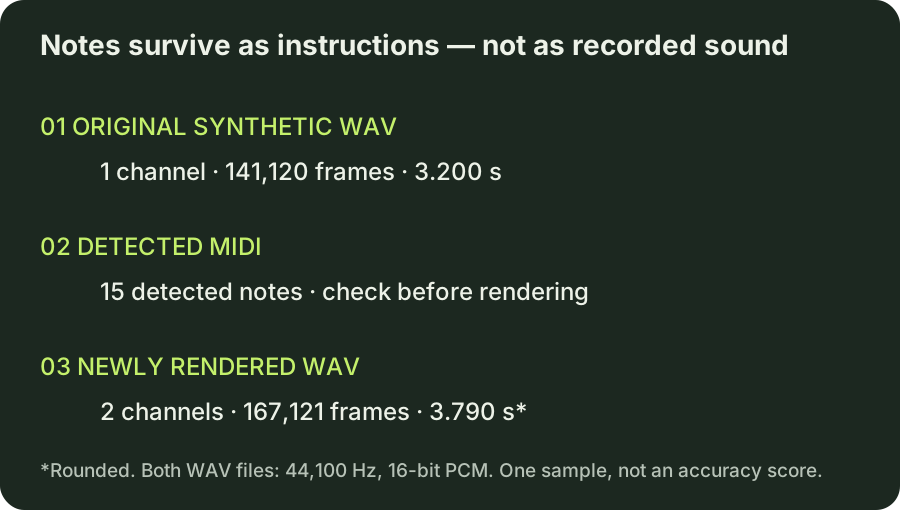
| Property | Original WAV | Rendered WAV |
|---|---|---|
| Channels | 1 | 2 |
| Sample rate | 44,100 Hz | 44,100 Hz |
| PCM sample width | 16 bits | 16 bits |
| Sample frames | 141,120 | 167,121 |
| Duration | 3.200 seconds | 3.790 seconds, rounded |
Duration is frame count divided by sample rate: 141,120 / 44,100 = 3.2 seconds for the source; 167,121 / 44,100 ≈ 3.789592 seconds for the output. The extra duration and channel change are observations, not evidence of a better or worse transcription. We did not isolate the cause of the extra duration.
The lesson is to separate two checks. First, does the MIDI contain the notes and timing you wanted? Second, does the chosen instrument render them the way you want? An audio export cannot reconstruct a missing note just by changing the file format. Matching sample rates also does not make two recordings identical.
Reproduce this using our actual detected MIDI and compare it with the original synthetic WAV. The earlier experiment documents the source and filtering. Our measurement record includes file hashes, frame counts and formulas. We are not redistributing the external renderer's instrument library or claiming rights to its samples.
Check the notes before polishing the sound
For this round trip, start with the fifteen-note MIDI, not the sixteen-tone source expectation. If a note was missed during transcription, fix the MIDI first. Otherwise an instrument change can distract you from the same missing event. Keep an unedited copy so you can distinguish your corrections from the detector's output.
Next, compare the beginning and end of the exported WAV. A longer file is not automatically a tempo error: inspect where the audible notes actually begin and finish before trimming. Our header measurement establishes the total length only. It does not measure note-onset alignment or explain an instrument's release behavior.
Finally, check the delivery requirements separately. Our output is stereo even though the source was mono. Do not label it a recovered mono recording. If your next app needs mono, make that an explicit export choice and inspect the resulting file again. Preserve the MIDI alongside the WAV so the notes remain editable.
Questions before exporting
Is MIDI to WAV the same as WAV to MIDI?
No. One renders existing note instructions into audio; the other estimates notes from a recording. Our experiment passes through both stages and cannot undo the first stage's errors automatically.
Will I get the original singer or instrument back?
No. Choose a playback instrument for the MIDI. The note file is not a copy of the recorded voice or its waveform.
Why can the same MIDI sound different in two apps?
Check the assigned instruments and effects rather than assuming the notes changed. Jukeblocks explicitly distinguishes its General MIDI rendering from a DAW's custom instrument setup.
Can I use this site's converter to export WAV?
Not currently. Use the external rendering workflow above. The homepage tool is for audio-to-MIDI conversion.
Sources and limits
Workflow checked against the renderer page and our actual download on September 26, 2026. File measurements come from the saved source and output, not estimates. This is one controlled example, not a benchmark of music quality, full-song support or conversion accuracy.