MP3 TO MIDI · TIMING GUIDE
Why does my MIDI say 120 BPM?
Our converter writes every MIDI file with a 120 BPM time base. That is not a measurement of your song’s tempo. Keep that time base when checking playback against the MP3. If your music app applies a different tempo to the same note positions, the MIDI can play faster or slower.
Check the timing before moving notes
- Save a copy of your music project. Import the MIDI into a separate test project with a virtual instrument assigned.
- Check the tempo handling on import. For a file from this converter, start at 120 BPM and leave quantization off.
- Place the original MP3 and the MIDI at the same timeline origin. Compare an early note and a later note using seconds, not just bar numbers.
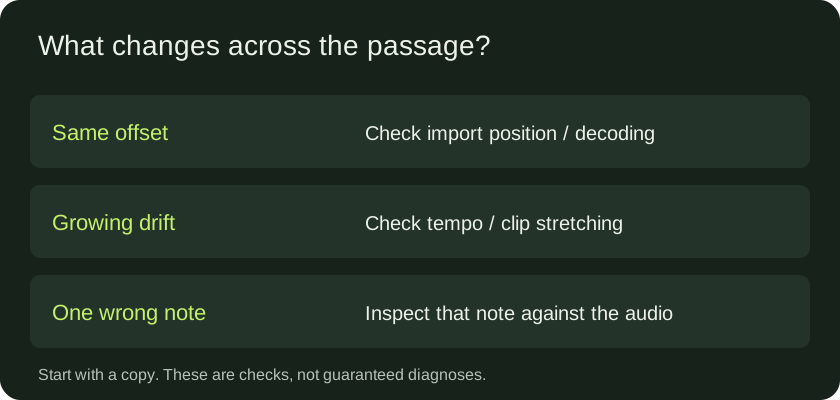
- If both are shifted by about the same amount, investigate the import position or audio decoding offset. If the difference grows across the passage, inspect the project tempo and clip stretching first.
These checks help distinguish different problems; they do not prove the transcription is correct. Audio decoding, missed notes and inaccurate note boundaries can still cause differences. Import controls vary between music apps, and this page does not claim a completed compatibility test in every DAW.
A file you can inspect
We passed three deliberately specified notes through the same MIDI exporter used by this site, then parsed the resulting bytes independently. This test bypasses audio detection. It tests the way timestamps are saved, not how accurately the converter hears an MP3.
The notes start at 0.5, 1.5 and 2.5 seconds and end at 1, 2 and 3 seconds. Their MIDI pitches are 60, 64 and 67. Each has velocity 80. The exported file has one track, MIDI Format 0, a resolution of 960 ticks per quarter note and a tempo event of 500,000 microseconds per quarter note. That tempo event means 120 BPM.
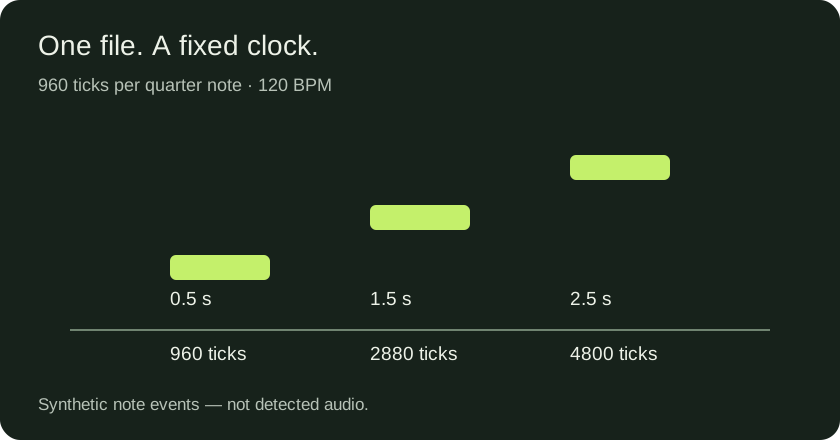
| Note | Tick | 120 BPM | 90 BPM* | 150 BPM* |
|---|---|---|---|---|
| 60 | 960 | 0.500 s | 0.667 s | 0.400 s |
| 64 | 2880 | 1.500 s | 2.000 s | 1.200 s |
| 67 | 4800 | 2.500 s | 3.333 s | 2.000 s |
*The 90 and 150 BPM columns are arithmetic scenarios: the tick positions stay fixed while the playback tempo changes. They are not observations from a particular DAW. The calculation is seconds = ticks ÷ 960 × 60 ÷ BPM. A music app that rescales the clip or preserves absolute time can behave differently.
At 90 BPM, every time is multiplied by 120/90. At 150 BPM, every time is multiplied by 120/150. This explains why changing the project tempo can stretch or compress the passage without changing any pitches. Renaming the file or converting the source MP3 to WAV would not change this relationship.
The important distinction is between the clock used to store notes and the musical pulse of the performance. Our exporter uses the former. It does not infer bar lines, a time signature or a changing tempo map from this control. Notes can therefore play at their saved times without lining up with the musical grid you want to edit.
Download and repeat
- Three-note MIDI control
- Parsed events, calculated times and file hashes
- Generator and byte parser · Frozen exporter used for this test
Save the generator and exporter in the same folder, then run node generate.cjs. It writes the control and measurement record beside them. These original example files are provided under CC0 so you can repeat and adapt the experiment.
Turn the result into a useful check
Use the control before troubleshooting a long transcription. At its written tempo, the final note starts at 2.5 seconds. If the same unscaled tick positions start at 3.333 seconds in a 90 BPM project, the result matches the tempo scenario above. If the note stays at 2.5 seconds, your application may have preserved the file’s tempo or adjusted the clip. Check its import settings rather than assuming which choice it made.
Next compare your actual conversion at two or more positions. Do not stretch an entire performance just to fix one incorrectly detected note. A constant offset, a tempo mismatch and one local note error require different edits. Keep the original audio as your reference and retain an unedited MIDI copy.
For a project that needs a different musical grid, establish the intended beat positions first, then use your editor’s tempo mapping or clip timing controls while monitoring the original audio. This exporter control supplies a stable reference clock; it does not decide the correct musical tempo for your recording.
Questions about MP3 to MIDI timing
Does 120 BPM mean my song is 120 BPM?
No. In this converter it is a fixed export setting. It tells a player how to interpret ticks; it is not detected song tempo.
Does this converter quantize the notes?
No. It saves estimated start and end times at its MIDI tick resolution. Snapping those notes to a musical grid is a separate editing decision.
Should I set my existing project to 120 BPM?
Test in a copy or separate project first. Changing the tempo of an existing arrangement can affect other tracks. Check how your editor imports tempo and handles clip timing before changing the arrangement.
Will a different tempo fix wrong notes?
No. Tempo changes timing. A wrong pitch, an extra note or a missing note still needs attention.
Does this prove accurate MP3 transcription?
No. We supplied known note events directly to the exporter. This verifies the file representation used in this example, not recognition quality, real instruments or DAW compatibility.
Method and related guides
The control, parsed values, diagrams and diagnostic analysis are our own work. Tested October 1, 2026. The frozen source and hashes above identify the exact exporter. For a different experiment, see our WAV note-filter control or quiet-audio check.