Which conversion direction do I need?
Start with audio or MIDI, and choose between editable notes and rendered sound.
Choose your MIDI workflow →LOCAL AUDIO-TO-MIDI CONVERTER
Turn your audio into MIDI notes you can preview and correct.
Delete individual notes, shift them by one semitone, and undo changes before downloading.
Up to 50 MiB per file. Supported formats depend on your browser.
Still not working? Let us know
Recordings use Melody unless you choose a mode. You can re-analyze the same audio after conversion.
Waveform scaled for visibility; playback volume is unchanged.
Your MIDI preview will appear after conversion.
, or tell us about it.
Notes look wrong?
Result not right? Tell us what you tried
One Type 0 MIDI track · 120 BPM · 960 PPQ · original timing, no beat quantization. Chords stay as overlapping notes; instruments are not split into separate tracks. Check import timing and track structure. Delete or shift individual notes here before downloading; use an external music app for more detailed editing. Follow the solo voice walkthrough for a real recording and a local error to inspect.
Changes update your MIDI instantly. No need to analyze again.
SEE ONE LOCAL CORRECTION
A solo singing example produced an extra high fragment. Deleting that fragment left the other notes in place; Undo brought it back.
October 3 example: 105 → 104 notes. Removing a fragment does not fill a missing note or make the whole transcription correct.
Follow the correction walkthrough →Use the edited MIDI in GarageBand →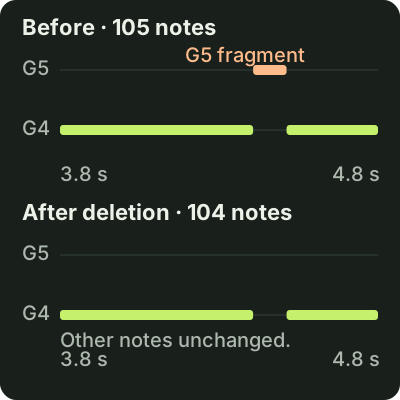
PICK THE RIGHT WORKFLOW
Start with your source, check the result, then use the MIDI in your music app.
START CONVERTING
Start with audio or MIDI, and choose between editable notes and rendered sound.
Choose your MIDI workflow →Choose chord or single-melody analysis, then compare note-length settings with an archived control.
Open the WAV workflow →Try the single-melody filter workflow and compare downloadable, versioned quiet-audio controls.
Check quiet audio →CHECK & USE YOUR MIDI
Use a timing control and video walkthrough to check how your project tempo handles the notes.
Check MIDI timing →Compare two controls and watch the walkthrough of timing, tracks and channels.
Inspect tracks and channels →Compare identical notes with different track endings using two downloadable controls.
Inspect the MIDI ending →Inspect 17 synthetic controls and the current preview limitation before editing dynamics.
Check MIDI velocity →Follow the external-rendering workflow to choose an instrument and turn MIDI into audio.
Use MIDI to WAV →Have a question or an idea? Get in touch
Choose Polyphonic before uploading for chords and overlapping notes. Detected notes go into one MIDI track. Drums, vocals, bass and other instruments are not separated into stems, so dense full mixes can still produce extra or missing notes.
No. Your selected files and recordings are decoded and processed on your device. The chord model is downloaded to your browser, but your audio is not uploaded. The tool tries to save only your latest audio and result locally in this browser. Use “Delete saved result” to remove the saved copy. Your browser may refuse or clear this storage. Optional visitor analytics loads only if you allow it and does not receive your audio or filenames. Read the privacy policy.
Yes. Choose Melody before uploading a vocal or solo-line file. Recordings use Melody unless you explicitly choose another mode. You can also re-analyze as a single melody under the result; the audio stays on your device.
First try “Re-analyze” under the result, which switches between chord and single-melody analysis. Then lower the filter under “Shape the notes” to keep weaker notes, or raise minimum note length cautiously to remove short fragments.
You can delete individual notes, shift them by one semitone, and undo changes before downloading. Export is Standard MIDI File Type 0, one track, 120 BPM and 960 PPQ. BPM is not detected and no beat quantization is applied. Chords appear as overlapping pitches in that track; separate instrument stems are not created.
No account or payment is required. Processing uses your device. Polyphonic analysis accepts up to 5 minutes per conversion; Melody accepts up to 10 minutes. Files are limited to 50 MiB, and browser decoding support varies.