FIELD GUIDE · WAV TO MIDI
WAV to MIDI: convert, then check the notes
Choose a WAV containing one clear melody, open it in our converter, select Convert to MIDI, and download the result. You get editable note events—not the original sound. Chords and full-band recordings need a different, polyphonic workflow.
Start with the right recording
A WAV is an audio container, not a list of notes. The converter has to estimate pitches and their timing. A clean solo melody is the intended input for this site's single-note detector. A WAV containing a piano chord is still several simultaneous notes; changing the file extension does not make that recording monophonic.
- Open the converter and choose your WAV. Audio processing stays in your browser.
- Wait for decoding, then select Convert to MIDI.
- Compare the piano roll and MIDI preview with the source. Check missing notes, extra notes and octave placement.
- Adjust the filters only if they address an observed problem. Download the
.midfile and assign an instrument in your MIDI editor.
The preview uses a synthesized sound. It is a way to check the notes, not a reconstruction of the instrument in your WAV.
Our test: one WAV, three settings
We generated a short test specifically for this guide and ran it through the live site in a desktop Chromium browser. It contains sixteen separate tones: MIDI pitches 60, 62, 64, 65, 67, 69, 71 and 72, repeated twice. Each tone lasts 160 milliseconds, followed by 40 milliseconds of silence. The complete file lasts 3.2 seconds.
This is deliberately simple synthetic audio, not a voice, guitar, piano or commercial recording. Its purpose is to make a filter experiment repeatable. It does not measure accuracy on real music.
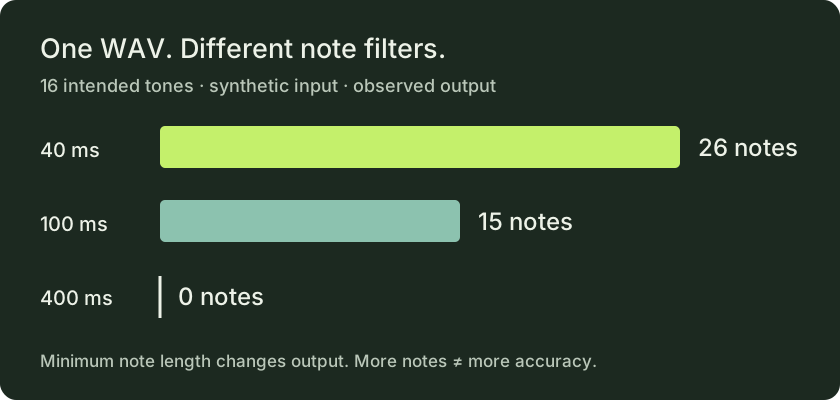
| Minimum note length | Detected notes | What to check |
|---|---|---|
| 40 ms | 26 | Output exceeds the sixteen intended tones. |
| 100 ms | 15 | Output falls short of the intended count. |
| 400 ms | 0 | The tool reports no notes at these settings. |
The input did not change between these runs. Only the minimum note length changed. At the shortest setting, more short detected segments survive. At the longest setting, none survive. The default setting is closer in count, but a count alone cannot establish that the pitches or timing are correct. We do not label any of these results a perfect transcription.
These results are a useful warning against moving every control upward or downward in search of an automatic fix. A lower threshold can retain useful short notes and unwanted fragments at the same time. A higher threshold can remove both. Listen to the section you are fixing and look at its notes before applying the setting to the whole recording.
Repeat the experiment yourself
Download the WAV below, open it in the converter and keep the quiet-note filter at −40 dB and transpose at zero. Start with the default 100 ms minimum, then compare 40 ms and 400 ms. The source is mono, 44,100 samples per second, with 16-bit PCM samples. The interface rounds the duration display to 0:03; the source file is 3.2 seconds long.
- Download our original WAV
- Download the observed 100 ms MIDI output
- Download the observed 40 ms MIDI output
- Read the generator and test record
You may use our generated test audio and MIDI outputs to repeat this experiment. Browser audio decoding and later tool changes may affect results; the numbers above describe the version tested on the stated date.
A small cleanup checklist
If the output is empty: bring the minimum note length back down before replacing your WAV. In our test, the same valid file produced notes at 100 ms and none at 400 ms. An empty result therefore did not prove that the file was broken.
If you see too many tiny notes: increase minimum note length gradually and compare the same passage. Do not assume that the resulting smaller file is necessarily more accurate. Our known sixteen-tone input is the reference, not the highest or lowest output count.
If notes are consistently in the wrong octave: listen before transposing. Transpose shifts every surviving note; it does not recover missing notes or distinguish a melody from chords. Use your editor for isolated mistakes rather than shifting an otherwise correct passage.
If the source contains a full arrangement: stop treating the filters as instrument separation. Our tool does not split a recording into independent bass, chord and melody tracks. Use a suitable isolated recording or a workflow designed for simultaneous notes.
Questions before you convert
Do I have to turn my WAV into MP3 first?
No. This tool accepts WAV directly when your browser can decode it. Making an extra MP3 copy is not part of this workflow.
Will MIDI preserve the original sound?
No. MIDI describes notes and timing. The sound you hear after import depends on the instrument assigned in your music software.
Does a clean WAV guarantee accurate notes?
No. The synthetic example above is clean, yet the output changes substantially with a single filter setting. Check your actual recording instead of assuming that a format guarantees transcription quality.
Is this a comparison of competing converters?
No. The downloadable results are from our own tool only. We have not run this fixture through other services and make no accuracy ranking.
Method and further reading
The experiment, diagram and cleanup observations are original to this page. General conversion workflows were cross-checked against Jukeblocks' audio-to-MIDI page, Songscription's WAV page and AI-MIDI's format and instrument guidance. Their product claims were not performance-tested here.